 Step-by-Step Instructions for Switching the ZTE B600 to English
30 Jun, 2026. Posted by:XPONSHOP
Most Views Posts
Hardening Enterprise Infrastructure: MACsec Integration and ACL Capabilities of Edge Gateway Routers
2026-06-22 15:32:24
Huawei MA5671A SFP Optical Network Terminal - Official Technical Overview & Hardware Datasheet
2026-10-22 10:18:41
The Ultimate Guide to What causes the internal flash storage to become corrupted on older customer units: Architecture, Backplane Bandwidth, and Deployment
2026-09-30 11:03:47
Overcoming Network Bottlenecks: Enterprise Configuration Manual for NAT Loopback (Hairpinning)
2026-10-30 09:54:26
Troubleshooting ZTE ONTs: Optical Interfaces, Stacking Errors & L3 Protocols
2026-06-26 14:38:41
Popular Posts
High-Density Datacenter Scaling: Integrating 16K & 32K MAC Address Table Sizes at the Aggregation Layer
2026-05-27 14:00:15
ZTE PRWH DC Power Board Guide for C300/C350 OLTs
2026-03-24 11:01:44
Ultimate Technical Guide: ZTE GTGH 16-Port GPON Board for ZXA10 C300 OLT
2026-03-09 13:53:51
Random Posts
Systems Integrator's Blueprint: Step-by-Step Fiber Optic Sizing Guide to Dropshipping Telecom Hardware to Remote Installation Sites
2026-09-15 11:22:23
High-Performance Chinese Alternative 10G SFP+ Transceiver Optical Power Register Reference - Official Technical Overview & Hardware Datasheet
2026-07-23 11:47:50
IEEE & MEF Compliance Masterclass: Advanced Protocol Handling of Can an OEM ONT synchronize with an OLT operating on an external BITS clock reference?
2026-10-22 10:31:33
Recent Posts
AI Optical Transceivers vs. Telecom Optical Transceivers: Two ‘Personalities’ of the Same Component
2026-10-30 11:30:33
Overcoming Network Bottlenecks: Enterprise Configuration Manual for Nintendo Switch NAT Type D Resolution
2026-10-30 10:06:06
Cisco Business 350 Series Managed Switch Physical Security and Power Efficiency - Official Technical Overview & Hardware Datasheet
2026-10-30 10:03:46
About
XponShop blog describes some basics for Huawei / ZTE /
Nokia / FiberHome GPON OLT, ONT, SFP, and Site Power...
such as configurations, issue troubleshooting, knowledge
sharing, and keeps updating.
Recent posts
 AI Optical Transceivers vs. Telecom Optical Transceivers: Two ‘Personalities’ of the Same Component
27 Mar, 2025
 Overcoming Network Bottlenecks: Enterprise Configuration Manual for Nintendo Switch NAT Type D Resolution
27 Mar, 2025
 Cisco Business 350 Series Managed Switch Physical Security and Power Efficiency - Official Technical Overview & Hardware Datasheet
27 Mar, 2025
AI Optical Transceivers vs. Telecom Optical Transceivers: Two ‘Personalities’ of the Same Component
27 Mar, 2025
Overcoming Network Bottlenecks: Enterprise Configuration Manual for Nintendo Switch NAT Type D Resolution
27 Mar, 2025
Cisco Business 350 Series Managed Switch Physical Security and Power Efficiency - Official Technical Overview & Hardware Datasheet
27 Mar, 2025
Products from the blog
 ZTE ZXDU48 B600 30A AC/DC Power
Bulk Inquiry
 ZTE ZXDU48 B600 60A AC/DC Power
Bulk Inquiry
ZTE ZXDU48 B600 30A AC/DC Power
Bulk Inquiry
ZTE ZXDU48 B600 60A AC/DC Power
Bulk Inquiry

0.199657s

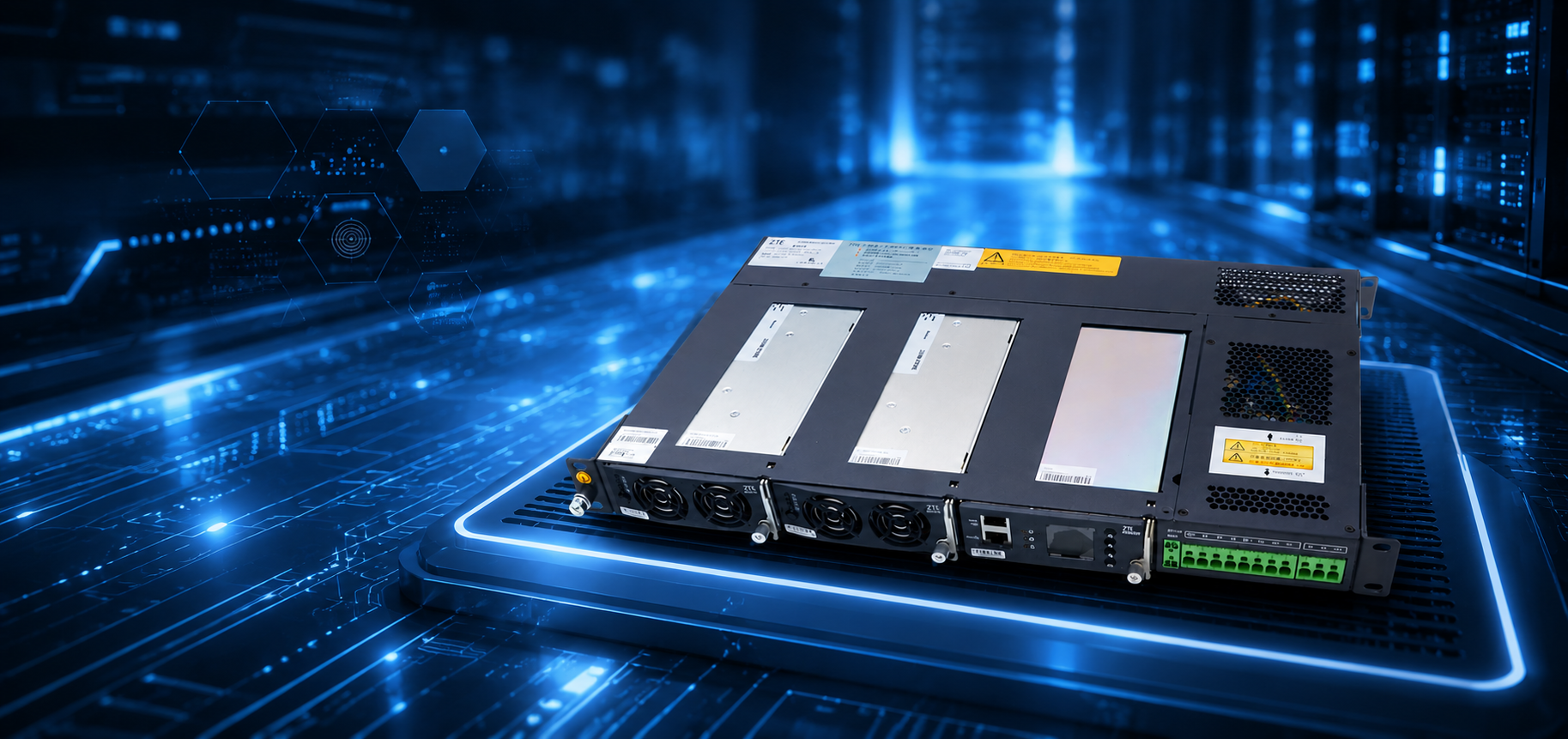
The ZTE CSU520Y is a monitoring module used in ZTE embedded DC power systems (such as the ZTE ZXDU48 B600). Its front-panel LCD provides local status monitoring and parameter configuration.
By default, the unit ships with the display language set to Chinese (中文). This guide walks you through the complete procedure to switch the display language to English, using only the front-panel button.
1.Navigate to the Parameter Setup Menu & Enter the Login Password
Once the CSU520Y is powered on, the LCD presents the main menu, which contains several top-level sections. Choose the main menu by Use the arrow buttons until you reach the "参数设置" (Parameter Setup) section.
Press ENT button, the LCD will automatically present a password entry prompt: "请输入口令:" (Enter Password).
The password field displays four digits with a cursor indicating the currently selected digit. Use the arrow button to adjust each digit.
The factory default password is 0000. Enter all four zeros and confirm the final digit to log in. The system will immediately advance to the parameter setup menu upon successful authentication.
2.Enter the System Parameters Section
After logging in, the LCD presents the menu, which contains several top-level sections. The language setting resides under 1.系统参数(System Parameters).
Pressing to highlight "1.系统参数", the Parameter Setup header changes to show 1/6, confirming your position at the first sub-menu. The highlighted entry (shown in reverse video) is now "System Parameters."
Press the ENT button enter the System Parameters list. This section contains 31 individual parameters covering everything from device identity and communication protocol settings to display preferences and password configuration.
3.Use the Arrow Buttons to Navigate to Parameter 9/31
Upon entering the System Parameters section, the screen begins at parameter 1/31. Press repeatedly to step forward through the parameter 9/31 and the label shows "语言设置" (Language Setting). This is your target.
4.Locate the Language Setting (Parameter 9/31)
At position 9/31, the LCD displays the "语言设置" (Language Setting) parameter. The current value is shown highlighted in the center of the screen as 中文 (Chinese), confirming that the device is currently operating in Chinese display mode.
Once you have confirmed you are at parameter 9/31 — 语言设置, you are ready to change the value. Proceed to the next step.
5.Change the Language to English and Confirm
At the "语言设置" (Language Setting) parameter, press the ENT button once to enter edit mode. The current value "中文" will appear highlighted, showing it is now editable.
→
Press the arrow button to cycle through available language options.
→
Press the ENT button to confirm and save the selection.
The change takes effect immediately upon confirmation. The LCD will refresh and all menu text will switch to English. You do not need to reboot the device or navigate back through the menus — the language update is applied system-wide at once.
The front panel display has been fully switched to English. All menu labels, parameter names, and status messages are now rendered in English throughout the entire interface, including the Parameter Setup menu, System Parameters, and all sub-sections.
If you have any questions or encounter any issues, please feel free to contact us: sales@xponshop.com