 Troubleshooting 10G SFP+ DAC Cable: Optical Interfaces, Stacking Errors & L3 Protocols
19 Aug, 2026. Posted by:XPONSHOP
Most Views Posts
PoE+ 802.3at power budget per port - Official Technical Overview & Hardware Datasheet
2026-05-27 13:47:55
FiberHome AN5506 ONU Remote Factory Reset via OMCI Hex Commands - Official Technical Overview & Hardware Datasheet
2026-08-27 10:37:19
High-Density Fiber Infrastructure Application Note: Central Office Modernization - Replacing Legacy Copper with High-Density FTTH Systems
2026-09-18 09:05:10
Link Aggregation Network Switch Deep Dive: Internal ASIC Forwarding, Packet Pipelines, and Latency Limits
2026-06-24 14:05:26
Managing ONT VLAN Trunking: Console Setup, CLI Modes & Firmware FAQ
2026-10-23 09:07:08
Popular Posts
10GbE Enterprise Router Price - Official Technical Overview & Hardware Datasheet
2026-05-21 15:23:38
Unlocking Gigabit Potential: The Definitive Guide to the Nokia G-010G-P ONT
2026-05-07 11:51:36
Managing Schedule-Based Wi-Fi Auto Off on Your Home ONT: Initial Setup & CLI Configuration FAQ
2026-09-21 09:39:38
Overcoming Network Bottlenecks: Enterprise Configuration Manual for Resolving Rogue ONU Issues in a GPON Network
2026-09-10 10:05:10
What are MTU and Jumbo Frame?
2025-12-03 16:01:42
Random Posts
Overcoming Network Bottlenecks: Enterprise Configuration Manual for ONT Stuck in Discovery State (O2) on Third-Party OLT Line Cards
2026-09-18 09:14:57
Enterprise Core Systems Engineering Reference Manual: Digital Signage Network Distribution Matrix Switch
2026-06-17 13:53:52
Overcoming Network Bottlenecks: Enterprise Configuration Manual for How do I back up user configuration settings into a file before performing a reset?
2026-09-23 09:33:24
Sourcing OEM ONU: Transceiver Compatibility, Lead Times & Lifetime Support FAQ
2026-09-29 09:16:17
Recent Posts
AI Optical Transceivers vs. Telecom Optical Transceivers: Two ‘Personalities’ of the Same Component
2026-10-30 11:30:33
Overcoming Network Bottlenecks: Enterprise Configuration Manual for Nintendo Switch NAT Type D Resolution
2026-10-30 10:06:06
Cisco Business 350 Series Managed Switch Physical Security and Power Efficiency - Official Technical Overview & Hardware Datasheet
2026-10-30 10:03:46
About
XponShop blog describes some basics for Huawei / ZTE /
Nokia / FiberHome GPON OLT, ONT, SFP, and Site Power...
such as configurations, issue troubleshooting, knowledge
sharing, and keeps updating.
Recent posts
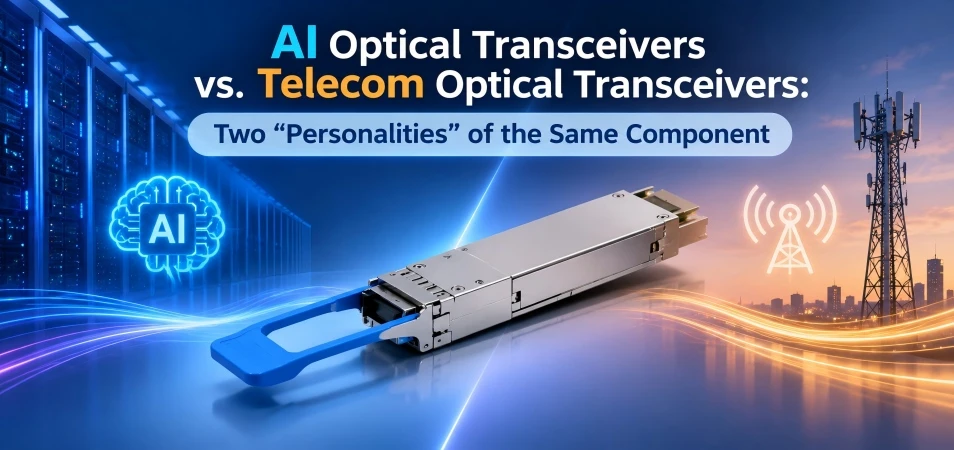 AI Optical Transceivers vs. Telecom Optical Transceivers: Two ‘Personalities’ of the Same Component
27 Mar, 2025
 Overcoming Network Bottlenecks: Enterprise Configuration Manual for Nintendo Switch NAT Type D Resolution
27 Mar, 2025
 Cisco Business 350 Series Managed Switch Physical Security and Power Efficiency - Official Technical Overview & Hardware Datasheet
27 Mar, 2025
AI Optical Transceivers vs. Telecom Optical Transceivers: Two ‘Personalities’ of the Same Component
27 Mar, 2025
Overcoming Network Bottlenecks: Enterprise Configuration Manual for Nintendo Switch NAT Type D Resolution
27 Mar, 2025
Cisco Business 350 Series Managed Switch Physical Security and Power Efficiency - Official Technical Overview & Hardware Datasheet
27 Mar, 2025
Products from the blog
Overview
Interoperability between enterprise-grade networking hardware, such as Cisco switches and MikroTik routers, is a cornerstone of modern hybrid network architectures. However, the physical and logical link-up of 10G SFP+ Direct Attach Copper (DAC) cables is a frequent source of frustration for network engineers. While these cables offer a cost-effective, low-latency solution for short-reach connections, incompatibilities in vendor coding, signal integrity, and software configuration often prevent a successful link negotiation. This comprehensive FAQ addresses the most common root causes and practical solutions for establishing a stable 10G link between Cisco and MikroTik platforms, covering everything from pre-sales compatibility checks to post-sales command-line troubleshooting.
Frequently Asked Questions